Super right-click is a powerful right-click menu tool on Mac, with rich features that add wings to your right-click menu. The deeply ingrained interaction design helps you greatly improve your macOS user experience!
Function Overview:
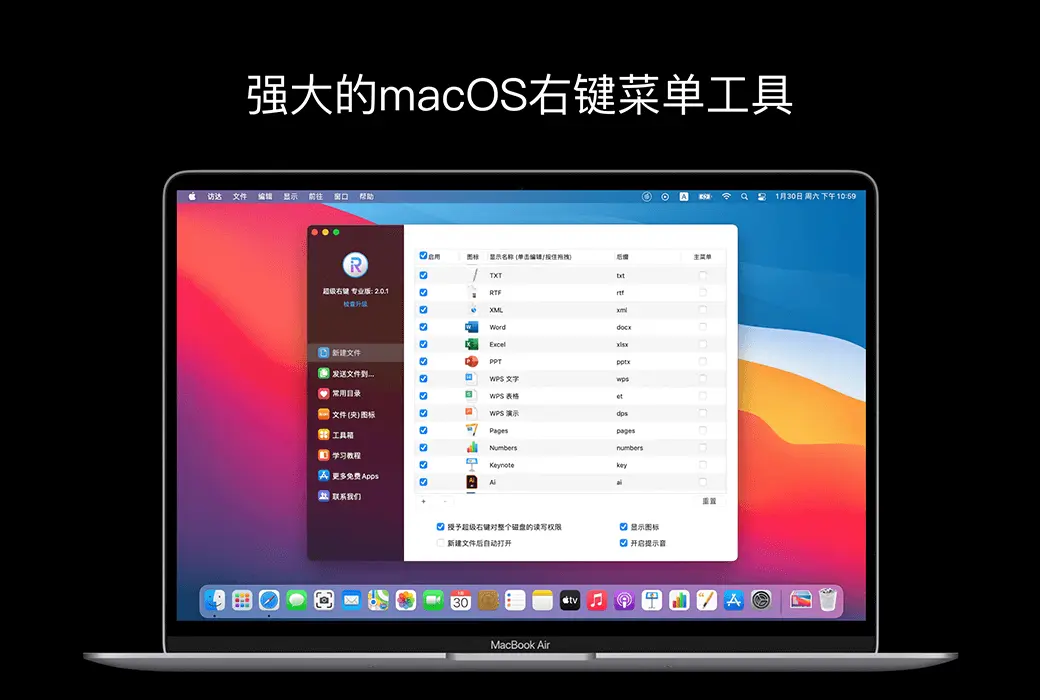
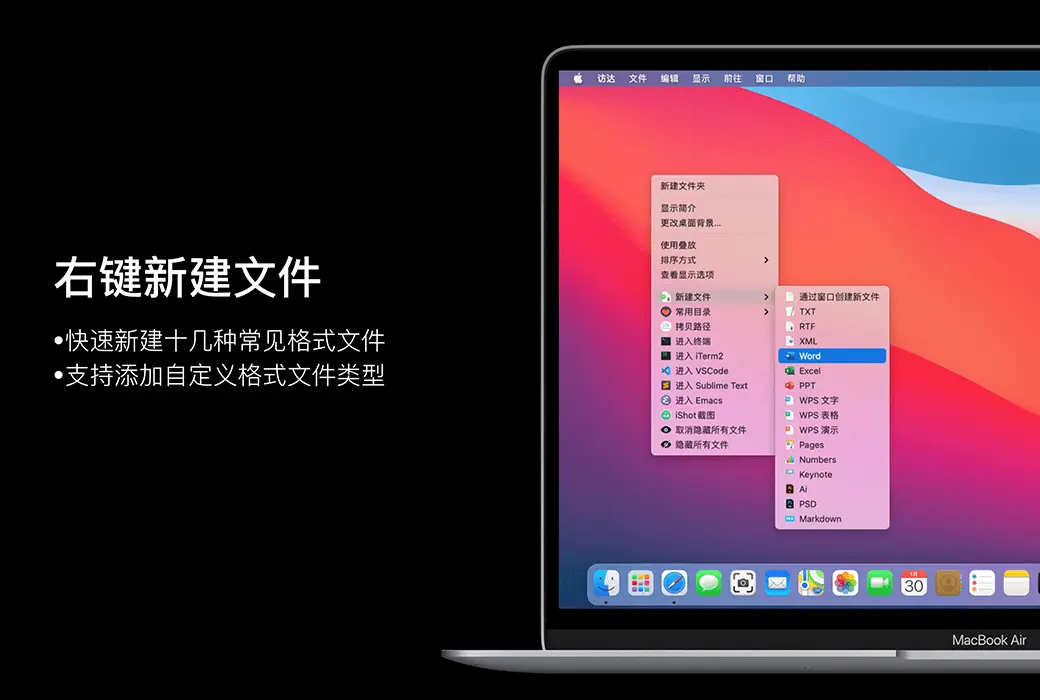
- Right click to create a new file
- Send files to
- Copy files to
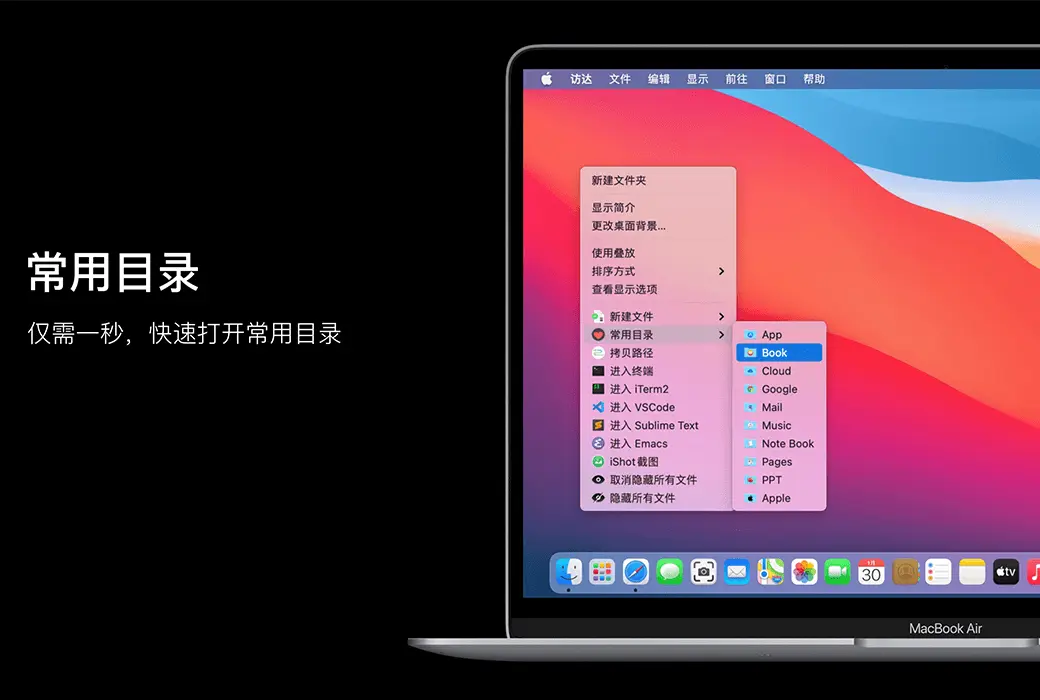
- Common Catalog
- Customize folder icon
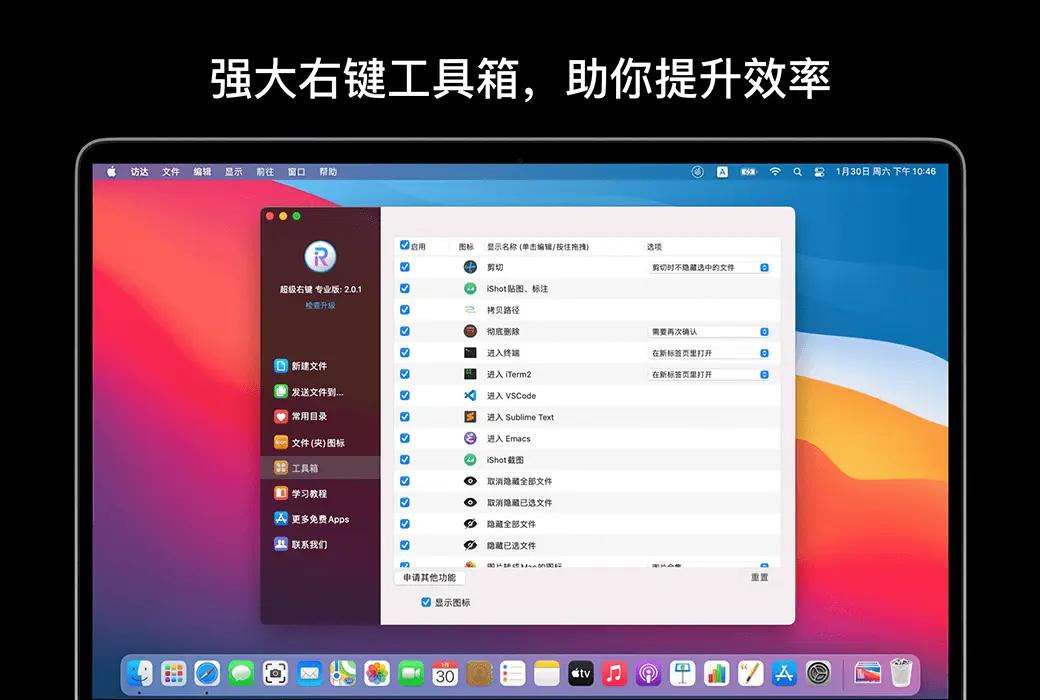
- Cut/paste files
- Copy Path
- Specify the tool to enter the current path
- Hide/Show Files
- Completely delete files
- Convert images to macOS icon set
- Convert images to iOS icon set
- Baidu Translate
- Google Translate
- QR code conversion
Function Introduction:
- Right click to create a new file
1. Default support for creating new file formats:
TXT/RTF/XML/Word/Excel/PPT/WPS Text/WPS Table/WPS Demo/Pages/Numbers/Notes/Ai/PSD/Markdown
2. Support users to add new file format types
- Send files to
Send the file to the specified location
- Copy files to
Copy the file to the specified location
- Common Catalog
Add and set common directories in the right-click menu, select to reach the specified directory
- Customize folder icon
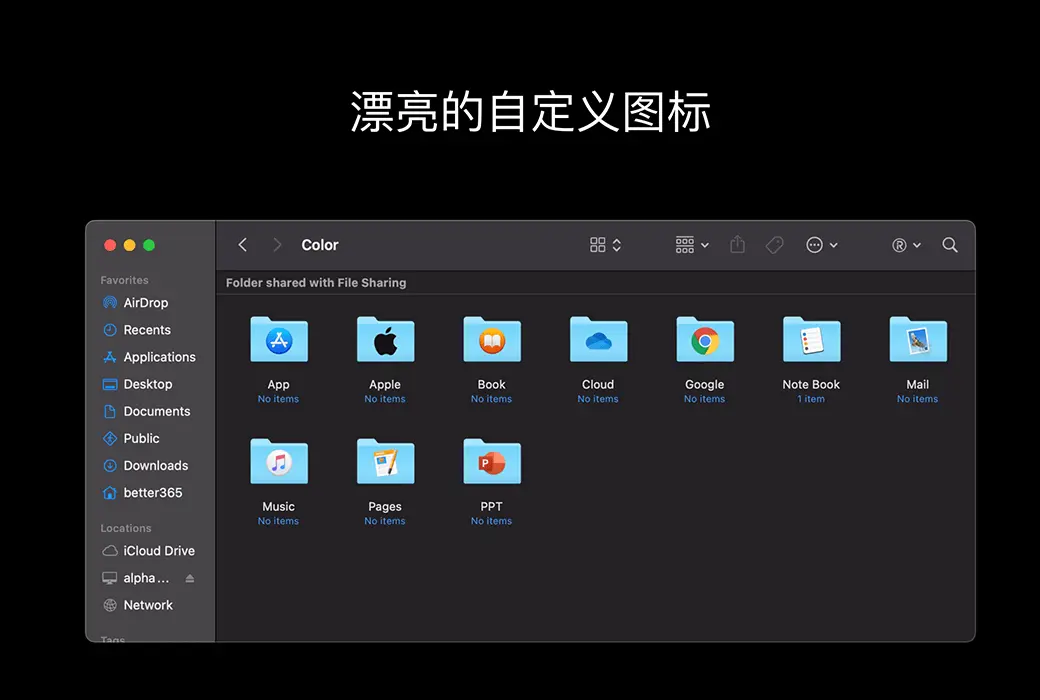
Isn't it inconvenient to find folders that are all the same? Don't be afraid, you can easily replace the folder with beautiful icons. Super right-click provides a large number of beautiful folder icons. Select the folder and set it up with a beautiful folder.
- Cut/paste files
Right click menu for cutting/pasting files, convenient and fast
- Copy Path
Select the file or right-click to copy the path in the current window for easy use
- Specify the tool to enter the current path
Enter the path in terminal/iTerm2/VSCode/Sublime Text/Emacs
- Hide/Show Files
1. Show/hide a file
2. Show/hide all files in the current window
- Completely delete files
Select the file, delete it directly, do not keep it in the trash can
- Convert images to macOS icon set
Select the image and convert it into icon sets of 16 * 16, 32 * 32, 64 * 64, 128 * 128, 256 * 256, 512 * 512, 1024 * 1024
- Convert images to iOS icon set
Select the image and convert it to:
1. iPhone icon group
29 * 29, 40 * 40, 58 * 58, 57 * 57, 114 * 114, 120 * 120, 180 * 180
2. iPad icon group
29 * 29, 40 * 40, 50 * 50, 58 * 58, 80 * 80, 100 * 100
72 * 72, 76 * 76, 144 * 144, 153 * 153, 160 * 160
3. Apple Watch icon group
48 * 48, 55 * 55, 58 * 58, 87 * 87
80 * 80, 88 * 88, 172 * 172, 196 * 196
Right click on the service menu:
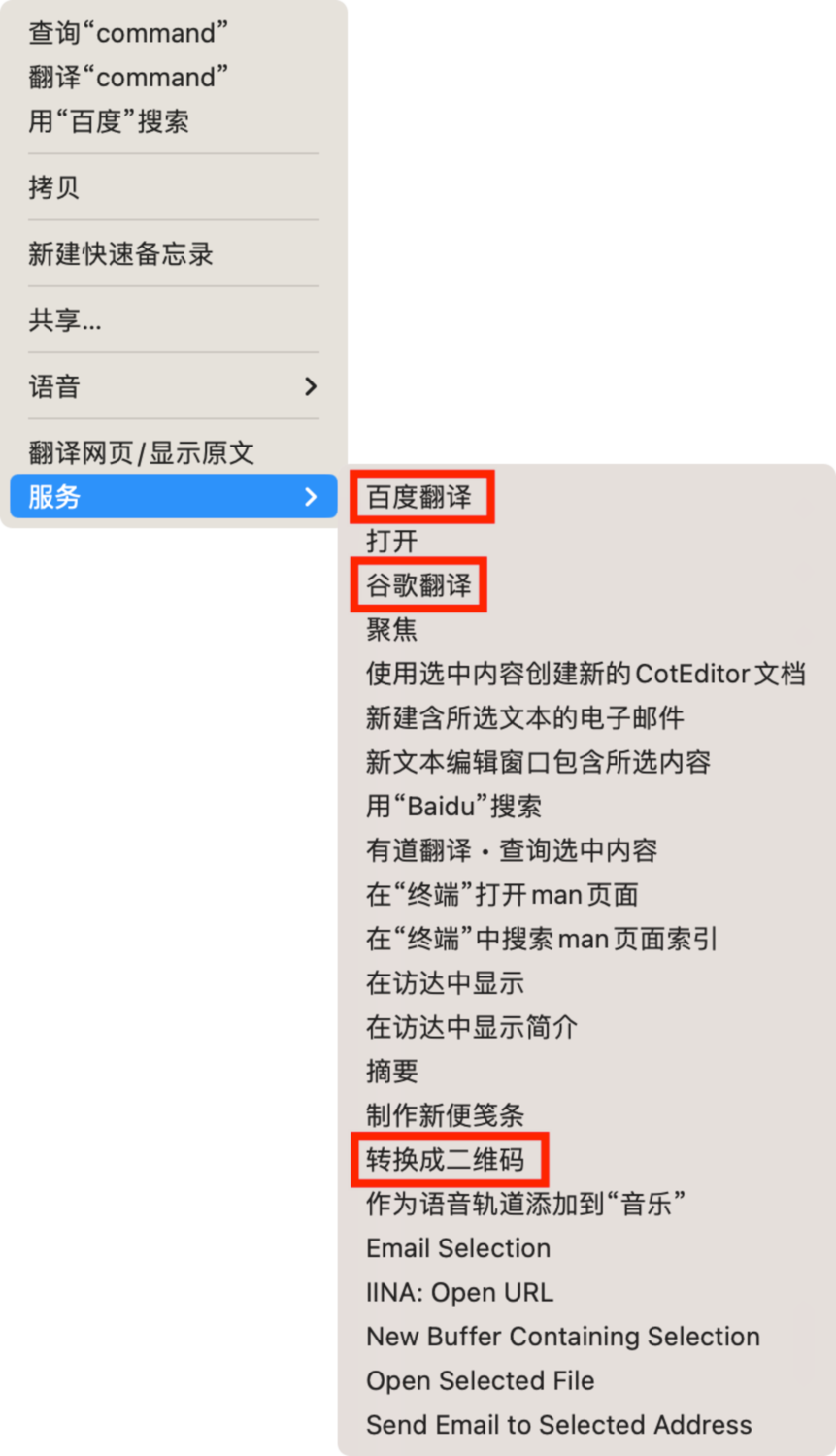
- Baidu Translate
- Google Translate
- QR code conversion
- Select the text and right-click on the service menu to perform Baidu Translate, Google Translate, and convert it into a QR code for storage on the clipboard