After restarting Finder, try again. If the issue persists,Reset computer If it still doesn't appear after restarting the computer, follow these steps:
[Problem and Solution] Super right-click - right-click menu does not display and access extension settings
If the right-click function is abnormal (not displayed) after installing Super Right Click, please follow the following steps to troubleshoot and resolve the issue.
MacOS 14 and above versions:
After macOS 14, Apple disabled the use of Finder extension apps in iCloud Sync folders. If you have enabled iCloud Sync in Desktop and Documents, right-click menus cannot be displayed in the Desktop and Documents folders. But you can still use it normally in other folders.
Solution:
Update the super right-click to the latest version. The super right-click of the latest version already supports calling up the super right-click menu in the iCloud synchronization folder. See
Set the display of the super right-click menu in cloud sync folders such as iCloud and OneDrive on Sonoma& gt;
MacOS 13 and below system versions:
1、 Check if the right-click menu function of the system is enabled
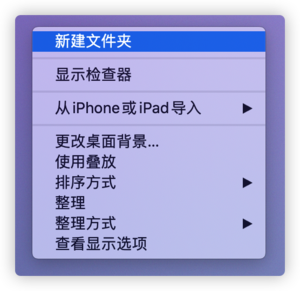
1. First, make sure that when you right-click on the desktop, the system right-click menu will appear. If so, please refer directly to the second step. Right click on the desktop and check if you have enabled the right-click function on your Mac computer. If it is enabled, the following menu will appear
2. Set the system right-click menu
(1) Touchpad & nbsp;& nbsp;& nbsp;
MacOS 13: Click on the Apple icon in the upper left corner of the screen, click on "System Settings", find "Touchpad" at the bottom of the left sidebar, click to enter, and set "Auxiliary Tap" to "Double Finger Tap or Tap" (or tap the bottom left corner or bottom right corner) in "cursor and tap".
On the desktop, double pointing or tapping the touchpad will bring up the system right-click menu, indicating successful settings.


MacOS 12 and below: Click on the Apple icon in the upper left corner of the screen, click on "System Preferences", click on "Touchpad", and in "Cursors and Tap", set "Auxiliary Tap" to "Double Finger Tap or Tap" (or tap the bottom left corner or bottom right corner).
On the desktop, double pointing or tapping the touchpad will bring up the system right-click menu, indicating successful settings.
(2) Apple MagicMouse
macOS 13: Click on the apple icon in the upper left corner of the screen, click on 'System Settings', find' Mouse 'at the bottom of the left sidebar, click to enter, and set' Auxiliary Tap 'to' Tap Right 'in' cursor and tap '.
Right click on the desktop using the Miaokong mouse, and the system right-click menu will appear, indicating successful settings.

MacOS 12 and below: Click on the Apple icon in the upper left corner of the screen, click on "System Preferences", click on "Mouse", check "Auxiliary Tap" in "cursor and tap", and set it to "Tap Right".
(3) Ordinary mouse
macOS 13: Click on the apple icon in the upper left corner of the screen, click on 'System Settings', find' Mouse 'at the bottom of the left sidebar, click to enter, and set' Auxiliary Tap 'to' Tap Right 'in' cursor and tap '.
Right click on the desktop with the mouse, and the system right-click menu will appear, indicating successful setup.
MacOS 12 and below: Click on the Apple icon in the upper left corner of the screen, click on System Preferences, click on Mouse, and set the main mouse button to Left.
Right click on the desktop with the mouse, and the system right-click menu will appear, indicating successful setup.
2、 Check if the super right-click access extension permission has been granted
1. Enable access extension
Please refer to the detailed access extension settings for macOS15 system
How to Enable Access Extension in Macos 15 System& gt;
macOS 13、 14: Click on the Apple icon in the upper left corner of the screen, select "System Settings", click on "Privacy and Security", find "Extensions" at the bottom and click to enter. Click on "Added Extensions", find "Super Right Click" or "Super Right Click Professional Edition", and check "Finder" Extension.


macOS12: Click on the apple icon in the upper left corner of the screen, select "System Preferences", click on "Extensions", select "Finder" extension, and check the "Super Right Click Finder" extension.
2. Restart Finder
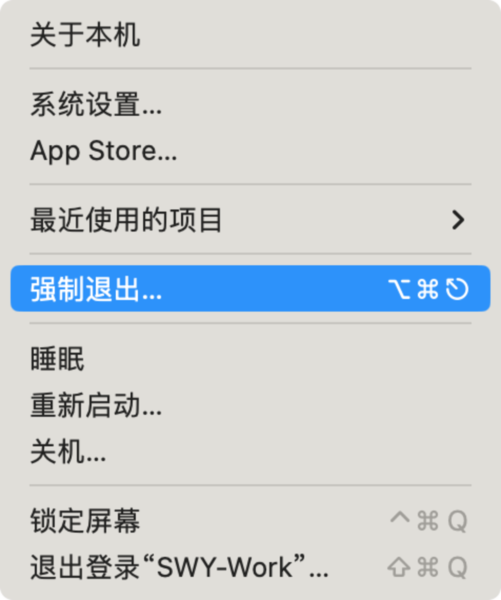
Click on the apple icon in the upper left corner of the screen, click on 'Force Exit', select 'Finder', and click 'Restart' to restart Finder.

3. Restart the computer
Restart Finder and try again. If the issue persists, please restart the computer.
Published on 2024-12-08
广东