Quick annotation on the side of your computer screen
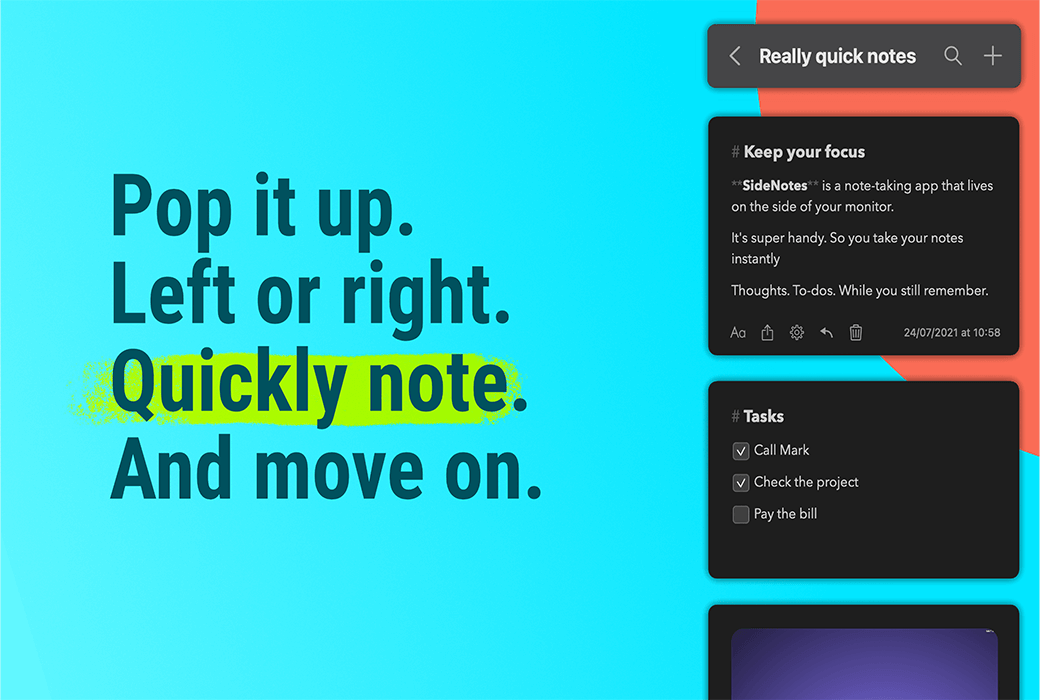
SideNotes saves your notes on one side of the screen. Appears when you click on a small bar or move the cursor to one side of the screen.
Any task, inspiration, or code snippet. Quickly display your notes. They are only hidden on one side of the screen. Call out the record immediately when needed.
- Collecting Inspiration
Move your projects, designs, and articles forward and quickly save inspirational quotes, pictures, and links.
- Your inbox for ideas
Just capture your buzzing sound when they pop up and continue working. We'll deal with them later.
- Quick to-do list
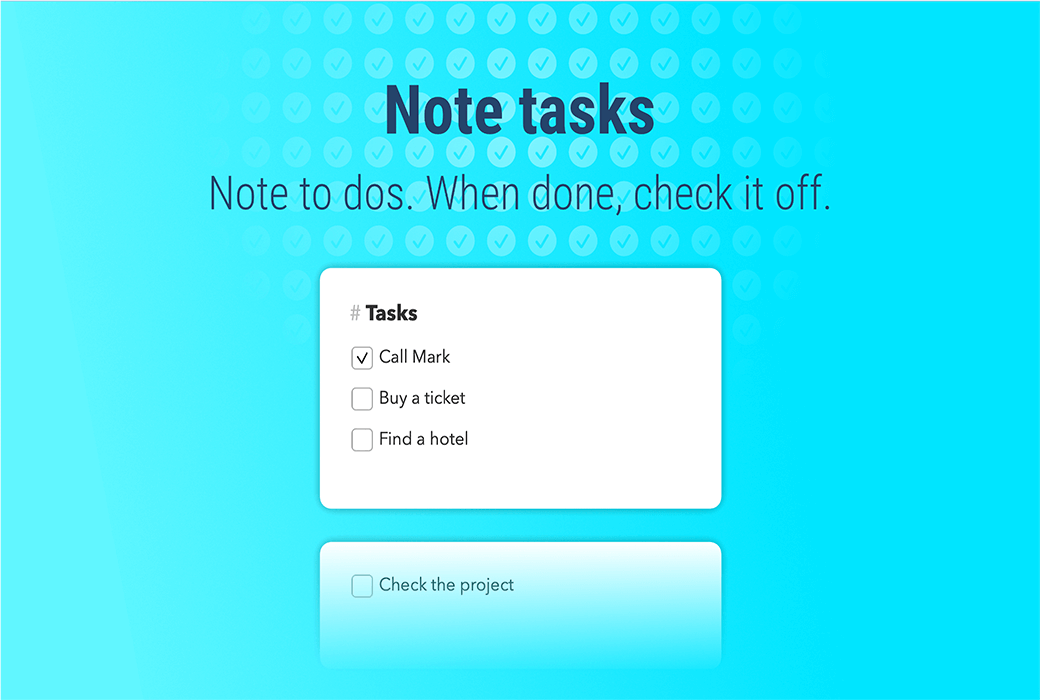
Quick access makes you want to take notes immediately. Take note of your task immediately and focus your attention on 'here and now'. Maintain efficiency and organization.
This digital notepad prevents distractions when taking notes.
Almost imperceptible.
Why is SideNotes unique?
It combines the simplicity of sticky notes with the convenience of complex note taking applications.
- It sticks to the edge of your screen
Take note while your project is still visible. Your notes are displayed on top of other applications. Even in full screen mode.
- It immediately grabs notes
SideNotes allows you to take quick notes without changing the context. You can define a global keyboard shortcut to quickly add your notes.
- Simple yet fully functional
Quick access and a plethora of features make it both convenient and enjoyable to use.
Sometimes, words cannot express everything
Notes are not just plain text. Save shortcuts to screenshots, task lists, code snippets, files, and folders. SideNotes supports all of these and more features.
- Export comments to image
You can export any comments to an image and send it to your friends or publish it as a social media post.
- Screenshots and images
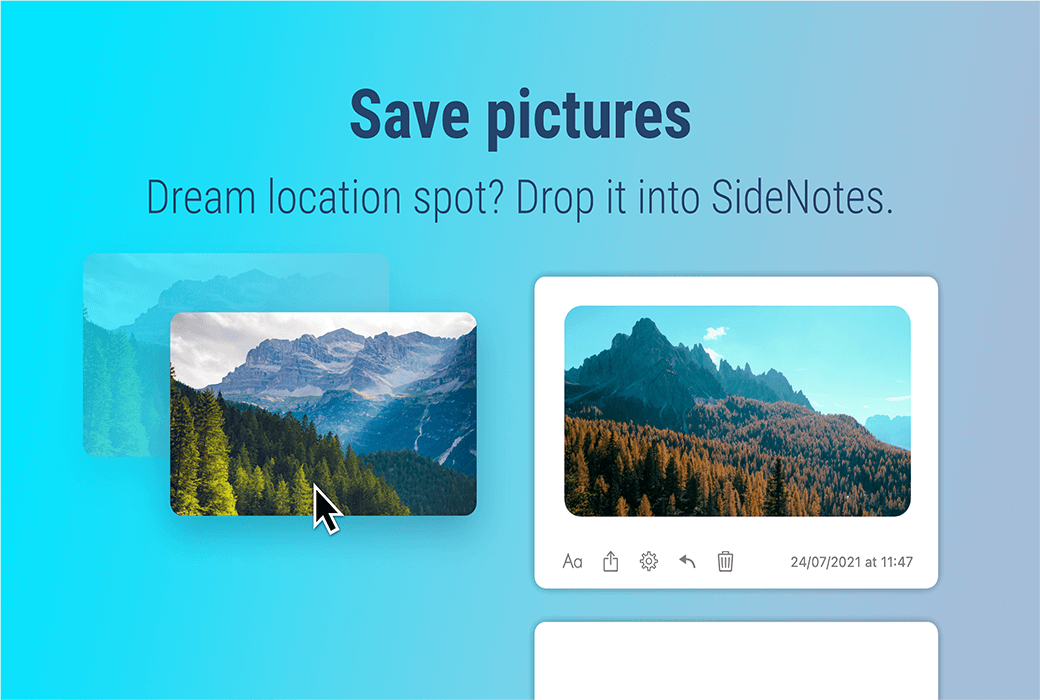
Where did you save your screenshot? Desktop is not a place.
You can save them in SideNotes. Just drag and drop the newly taken screenshot into the application. Everything is clean and within reach.
- Sketches and photos on iPhone and iPad
Long press the+button and take a photo using your iPhone or iPad. Draw a sketch or scan a document and import it into SideNotes.
- File and folder shortcuts
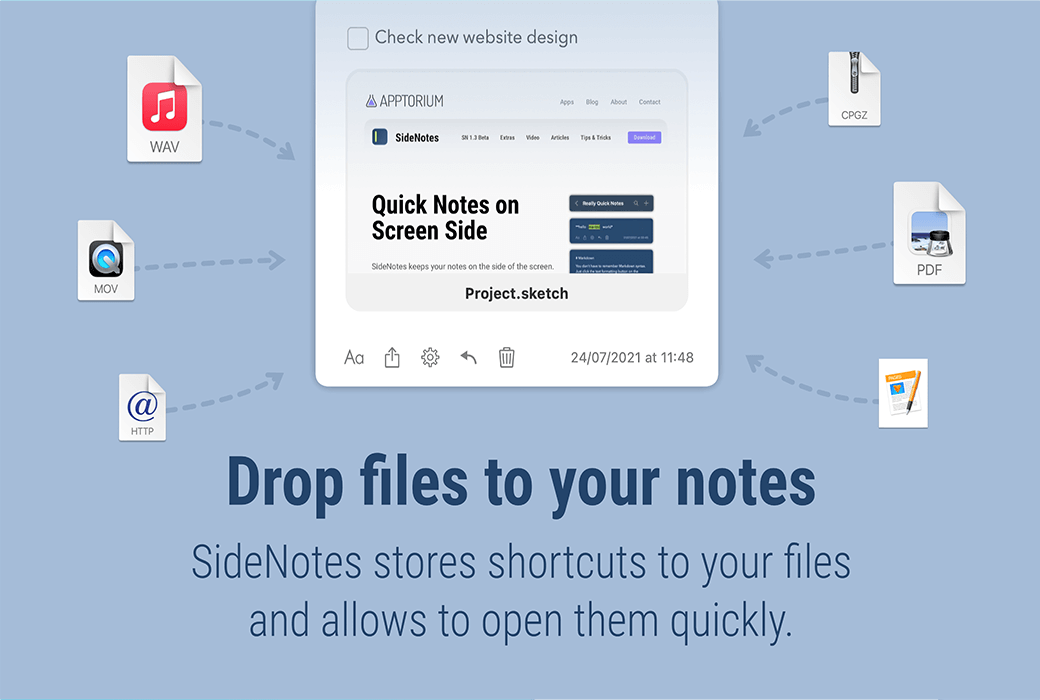
Drag and drop files or folders. SideNotes saves shortcuts with previews. Double click to open it.
- colour
If you are a graphic designer or developer, sometimes you need to save colors in # rrggbb format. SideNotes presents it well. One click copying.
- code snippet
Did you ever need to create a text file to save temporary code snippets? Just put it in SideNotes and format the text as Code.
Simple yet beautiful
Once you start using SideNotes, you may take a lot of notes.
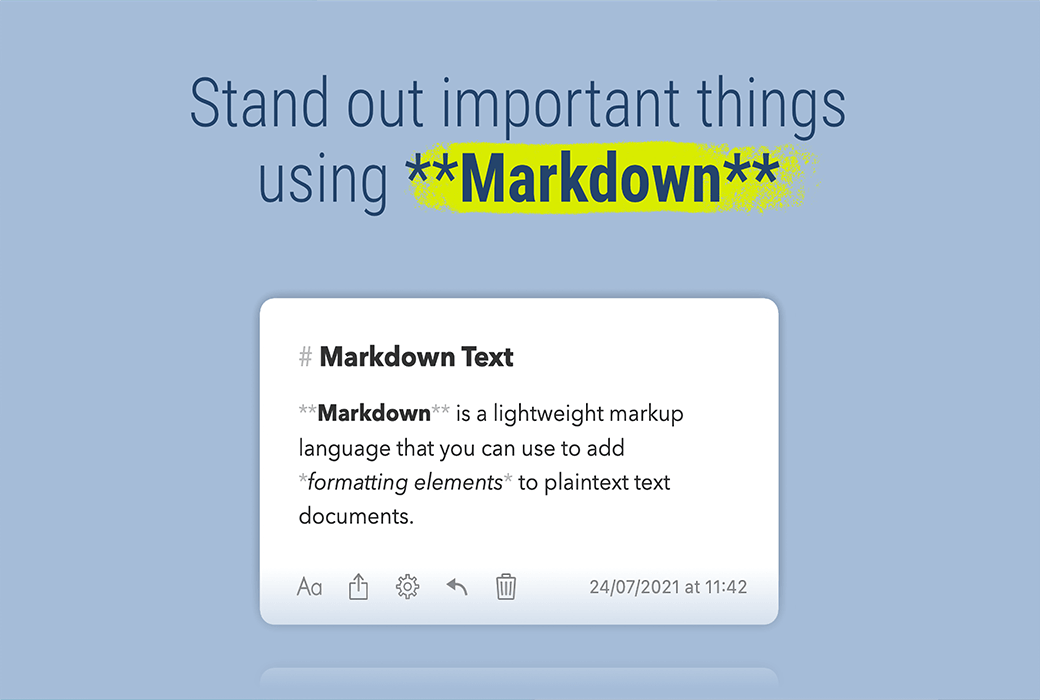
Distinguish them by color and format the text using Markdown.
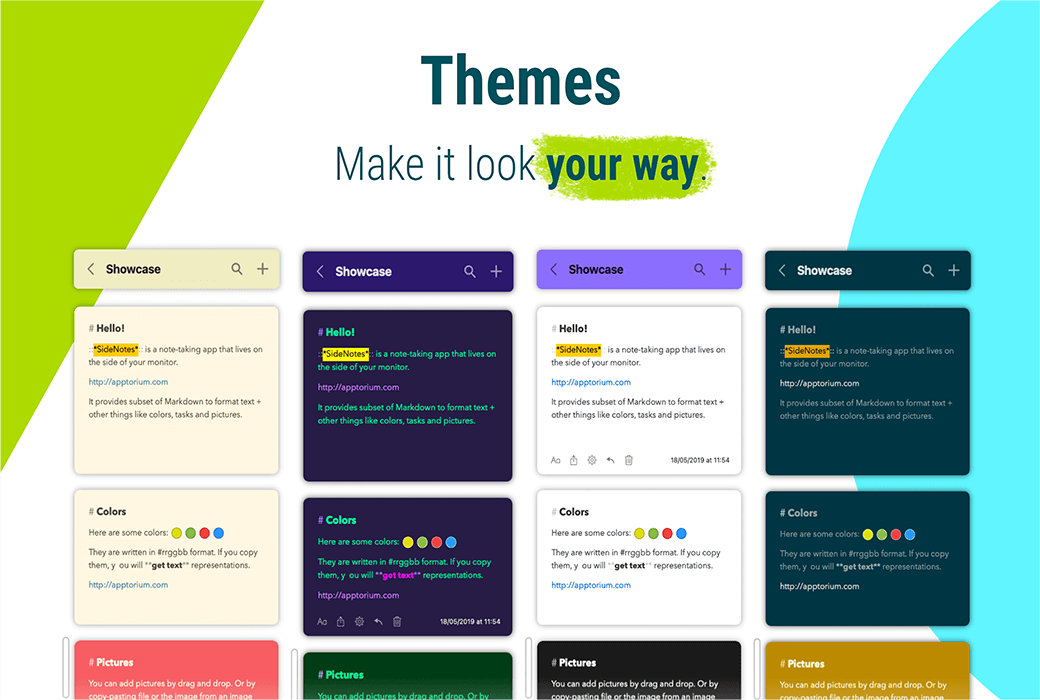
As SideNotes is your daily application, you can set styles, note colors, and format text using Markdown by selecting your favorite theme.
- theme
Elegance, vitality, and simplicity. Choose your favorite or create your own. Make the theme suitable for your mood or time of day. For more information, please visit the topic page.
- Pay attention to the color
You can choose a color for your notes to visually distinguish them. Choose a bar or background color. Read more
- Markdown
Quickly format text using a subset of Markdown syntax.
Automation and Integration
Integrate SideNotes with other applications to automate tasks using Shortcuts Actions and Apple Script API.
- Shortcut operation
Automate your daily tasks. Create notes and folders and integrate SideNotes with other applications.
- Apple Script
Create and modify notes and folders, search for them and retrieve their contents. You can integrate SideNotes with other applications using Apple Script.
- Alfred workflow
Download our Alfred workflow and take notes faster, quickly search for them, use snippets, and more.
There are more functions available
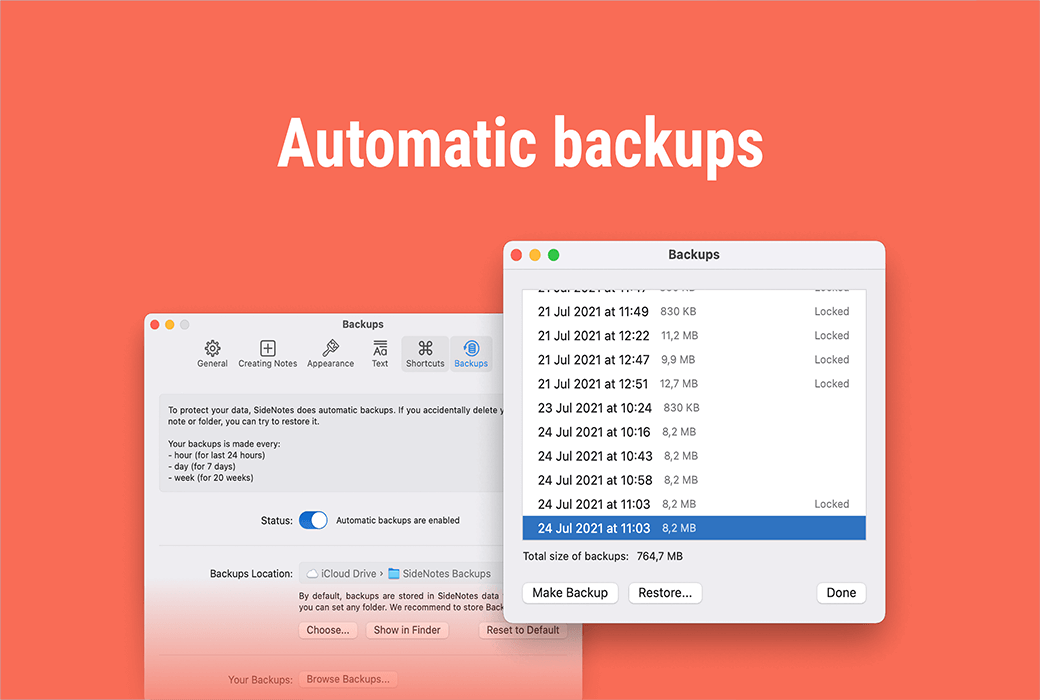
Extensive settings, automatic backups, and iCloud synchronization.
We really enjoy making this application, so this is not the end. keep in contact!
- first
Use as is or make some adjustments. Choose the location and method for displaying the application. Set your favorite appearance, decide how to display text, and set global keyboard shortcuts.
- Automatic backup
SideNotes will automatically backup your notes. Therefore, if you accidentally delete notes or folders, you have a chance to recover them.
- ICloud Sync
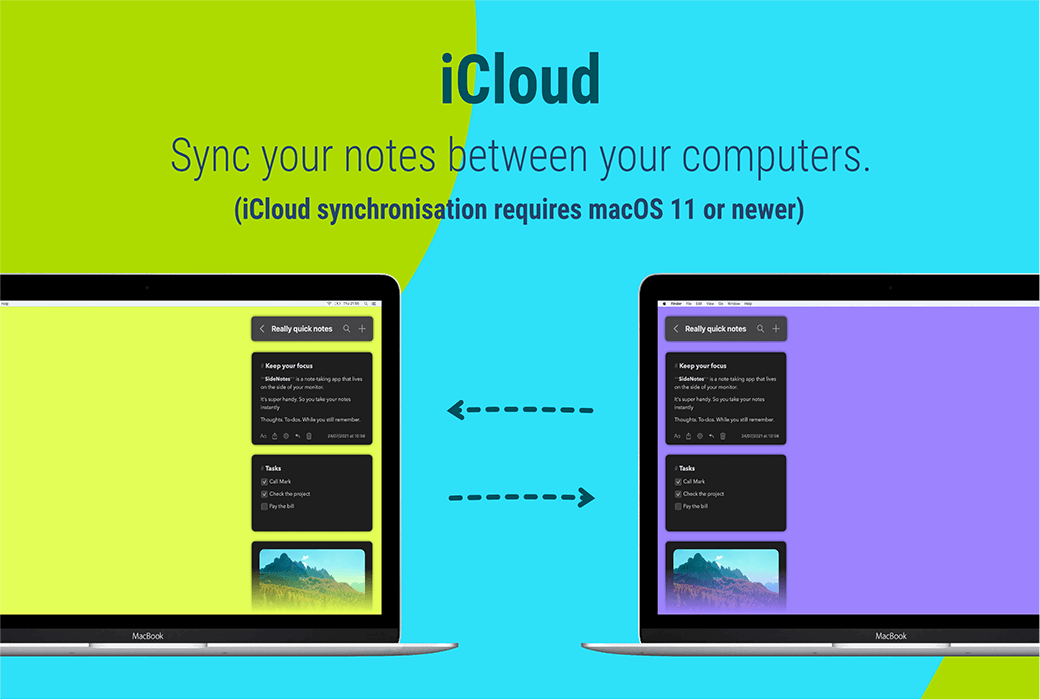
Now you can synchronize your notes between computers.
ICloud synchronization requires macOS 11 or higher.